We've Moved


The blog has been retired - it's up for legacy reasons, but these days I'm blogging at blog.theodox.com. All of the content from this site has been replicated there, and that's where all of the new content will be posted. The new feed is here . I'm experimenting with crossposting from the live site, but if you want to keep up to date use blog.theodox.com or just theodox.com
Showing posts with label console. Show all posts

Sunday, April 26, 2015

Goddamit, stop messing around

It was inevitable, after I started noodling around with terminal colors in ConEmu, that I’d waste an afternoon cooking up a way to color my Maya terminal sessions automatically.
The actual code is up on GitHub (under the usual MIT Open License - enjoy!).

As implemented, its a module you can activate simply by importing conemu. Ordinarily I don't like modules that 'do things' on import, but this one is such a special case that it seems justifiable. Importing the module will replace sys.stdout, sys.stdin, and sys.display_hook with ConEmu-specific classes that do a little color formatting to make it easier to work in mayapy.  If for some reason you want to disable it, calling conemu.unset_terminal() will restore the default terminal.

Here are the main features:

Colored prompts and printouts


This helps de-emphasize the prompt, which is the least interesting but item on screen, and to emphasize command results or printouts

Unicode objects highlighted


Since all Maya objects returned by commands are printed as unicode string (like u'pCube1', the terminal highlights unicode strings in a different color to make it easy to pick out Maya objects in return values. The annoying little u is also suppressed.

Code objects highlighted


Code objects (classes, functions and so on) are highlighted separately

Comment colors


Lines beginning with a # or a / will be highlighted differently, allowing you separate out ordinary command results from warnings and infos. In this version I have not isolated the path used by cmds.warning, which makes this less useful. Does anybody out there know which pipe that uses? It appears to bypass sys.stdout.write() and sys.stderr.write()

Automatic prettyprint


If the result of a command is anything other than a string, it will be run through prettyprint so that it will be formatted in a slightly more legible manner. This is particularly handy for commands like ls or listAttr which produce a lot of results: pprint will arrange these vertically if they result would otherwise be wider than 80 characters.

Utilities

The module contains some helper classes if you want to make your own display more elaborate, or to mess with it interactively during a console session.

Terminal: screen formatting

The Terminal class makes it less cumbersome to control the display. The main use is to color or highlight text. The 16 terminal colors are available as Terminal.color[0] through Terminal.color[15], and you can highlight a piece of text like so:
print "this is " + Terminal.color[10]("colored text")
The background colors are Terminal.bg[0] through terminal.bg[5] and work the same way:
print Terminal.bg[2]("backgound text")
Terminal also has a helper for setting, coloring, and unsetting prompt strings.

Conemu: console control

The Conemu class includes some limited access to the more elaborate functions offered by ConEmu (The methods in Terminal might work in other ANSI terminals – I haven’t tried ! – but the ConEmu ones specific to ConEmu). The key methods are:
ConEmu.alert(message)
Pops up a GUI confirm dialog with ‘message’ in it.
ConEmu.set_tab(message)
Sets the name of the current ConEmu tab to ‘message’.
ConEmu.set_title(message)
Sets the name of the current ConEmu window to ‘message’.
ConEmu.progress(active, progress)
if active is True, draw a progress indicator in the window task bar at progress percent. For example ConEmu.progress(True, 50) overlays a 50% progress bar on the ConEmu task bar icon. If active is false, the progress bar is hidden. This can be handy for long running batch items

Sunday, April 12, 2015

Didn't need those eyeballs anyway!

OK, I admit this one is pretty much useless. But it’s still kind of cool :)
Just the other day I discussed setting up ConEmu for use as a direct maya terminal. This is fun, but once you’ve got the console virus the next thing that happens is you start getting obsessed with stupid terminal formatting tricks. It’s almost as if going text modes sends you past the furthest apogee of spartan simplicity and starts you orbiting inevitably back towards GUI bells and whistles.
At least, I know that about 15 minutes after I posted that last one, I was trying to figure out how to get colored text into my maya terminal window.
It turns out it’s pretty easy. ConEmu supports ANSI escape codes, those crazy 1970’s throwbacks that all the VIM kiddies use on their linux machines to make ugly termina color schemes:
all this beauty... in your hands!
This means any string that gets printed to ConEmu’s screen, if it contains color codes, will be in color! You can change background colors, foreground colors, even add bold, dim or (God help us) blinking text to your printouts.
Here’s a quick way to test this out:
Start up a maya command shell in ConEmu (instructions here if you missed them last time).
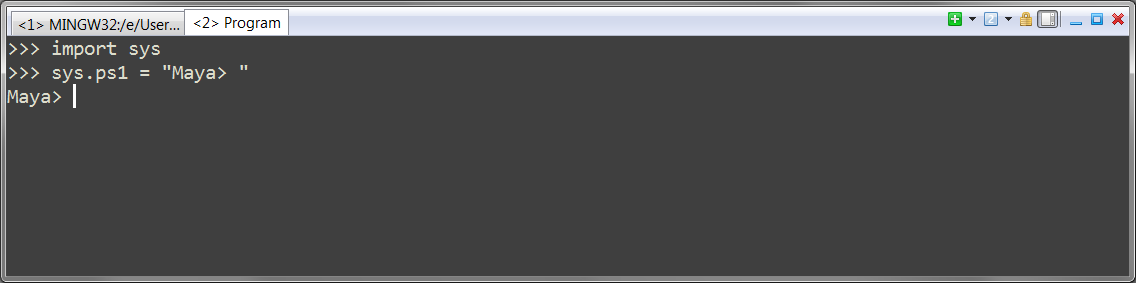
In your maya session, try this:

import sys
sys.ps1 = "Maya> "

This swaps in the custom prompt Maya> for the generic >>>.
console_prompt
Now, let’s try to make it a bit cooler: try setting sys.sp1 to this:
sys.ps1 = "\033[38;5;2mMaya>\033[0m "

color_console
Whoa!
Here’s what the gobbledygook means:
\033 is the ascii code for ‘escape’, which terminals use to indicate a non-printable character. The square bracket - number - m sequences are displayc ommands which will affect the output. In this case we said “set the text mode to color index 2’ (probably green on your system), type out ‘Maya> ‘, then revert to the default color”.
Here’s a few of the formatting codes that ConEmu supports:
  • \033[0m resets all escapes and reverts to plain text.
  • \033[1m and \033[2m start or end bold text
  • \033[4m turns on ‘inverse’ mode, with foreground and background colors reversed
  • \033[2J clears the terminal screen and sets the prompt and cursor back to the top. You probably don’t want to use this as your prompt, since it clears the screen after every key press! However it can be useful for paging through long results, Unix-more style.
  • 033[38;5;<index>m sets the text color to the color <index>. Colors are defined in the ConEmu settings dialog (Features > Colors). There are 16 color; here you identify them by index number (Color #0 is the default background, color #15 is the default foreground) This allows you to swap schemes – several well known codiing color schemes such as Zeburn and Solarized are included in ConEmu.
  • 033[48;5;<index>m sets the background color to the color <index>. The background colors are a bit hard to spot: if you check the colors dialog you’ll see a few items have two numbers next to them (such as ‘1/4’ or ‘3/5’). The second number is the background index. Yes, it’s wierd – it was the 70’s. What do you expect?
  • \033[39m resets any color settings.

These codes work sort of like HTML tags; if you “open” one and don’t “close” it you’ll find it stays on, so while you’re experimenting you’ll probably experience a few odd color moments.
But still… how cool is that? Now if we could only get it to syntax highlight… or recognize maya objects in return values… hmm. Things to think about :)
The Full list of escape codes supported by ConEmu is here

Saturday, April 4, 2015

Con Job


If you do a lot of tools work in maya – particularly if you’re working one something that integrates with a whole studio toolset, instead of being a one-off script – you spend a lot of time restarting. I think I know every pixel of the last five Maya splash screens by heart at this point. A good knowledge of the python reload() command can ease the pain a bit, but there are still a lot of times when you want to get in and out quickly and waiting for the GUI to spin up can be a real drag.
If this drives you nuts, mayapy - the python interpreter that comes with Maya - can be a huge time saver. There are a lot of cases where you can fire off a mayapy and run a few lines of code just to validate that things are working and you don’t need to watch as all the GUI widgets draw in. This is particularly handy if you do a lot of tools work or script development, but’s also a great environment for doing quickie batch work – opening a bunch of files to troll for out of date rigs, missing textures, and similar annoyances.
All that said, the default mayapy experience is a bit too old-school if you’re running on Windows, where the python shell runs inside the horrendous CMD prompt, the same one that makes using DOS so unpleasant. If you’re used to a nice IDE like PyCharm or a swanky text editor like Sublime, the ugly fonts, the monochrome dullness, and above all the antediluvian lack of cut and paste are pretty offputting.
However, it’s not too hard to put a much more pleasant face on mayapy and make it a really useful tool.